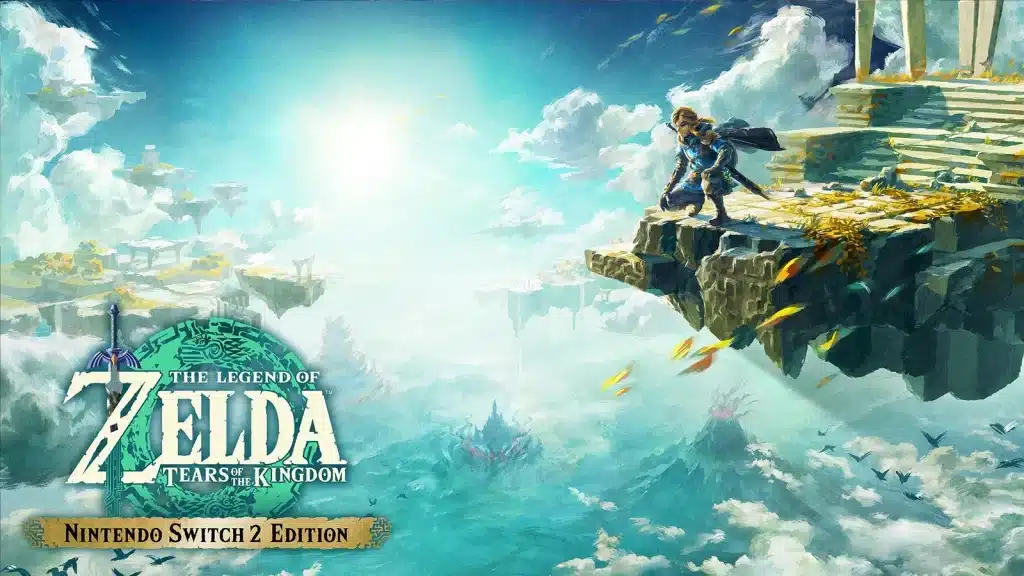
So here’s the deal: you’ve got a Switch 2, a Tears of the Kingdom save with a hundred hours of Ultrahand crimes on it, and you want both on the new console without losing a single Korok seed. Good news, it’s a smooth process. You move your data, pick up the Switch 2 Edition (or not), update the game and you’re back in Hyrule.
Let me paint the picture step by step: the two ways to move your save, how to get the Switch 2 Edition, and what to set up on your first night back.
Before You Start
| Item | Why it matters |
|---|---|
| Both consoles online and updated | System Transfer needs an internet connection and the latest system version |
| The same Nintendo Account on both | Save data only moves between users linked to the same account |
| Your old Switch nearby | The local transfer needs both consoles close together |
| TOTK on the latest version | Ver. 1.4.3 is current as of October 2026 |
One thing to know up front: a transfer moves your data rather than copying it. Once it’s done, the data is gone from the old console. That’s normal, not a bug.
Option 1: Full System Transfer (Recommended)
This is the one most players want. It moves your users, settings, save data and Nintendo Account links all at once, and your digital games get re-downloaded on the Switch 2.
On the Switch 2
- Start the initial setup and follow the prompts until you reach the System Transfer screen. Update the system if it asks.
- Select Begin System Transfer and sign in with the same Nintendo Account that’s linked to your user on the old Switch.
- Keep both consoles close together and select Done.
On the Original Switch
- Open System Settings from the HOME Menu and go to System.
- Select System Transfer to Nintendo Switch 2.
- Choose your options: whether to automatically download your software on the new console and whether to send screenshots and videos.
- Select Done when the Switch 2 is ready.
Back on the Switch 2, select Start Download once the consoles connect. It restarts after receiving the data and finishes the transfer on its own. Anyway, grab a drink, this part takes a while.
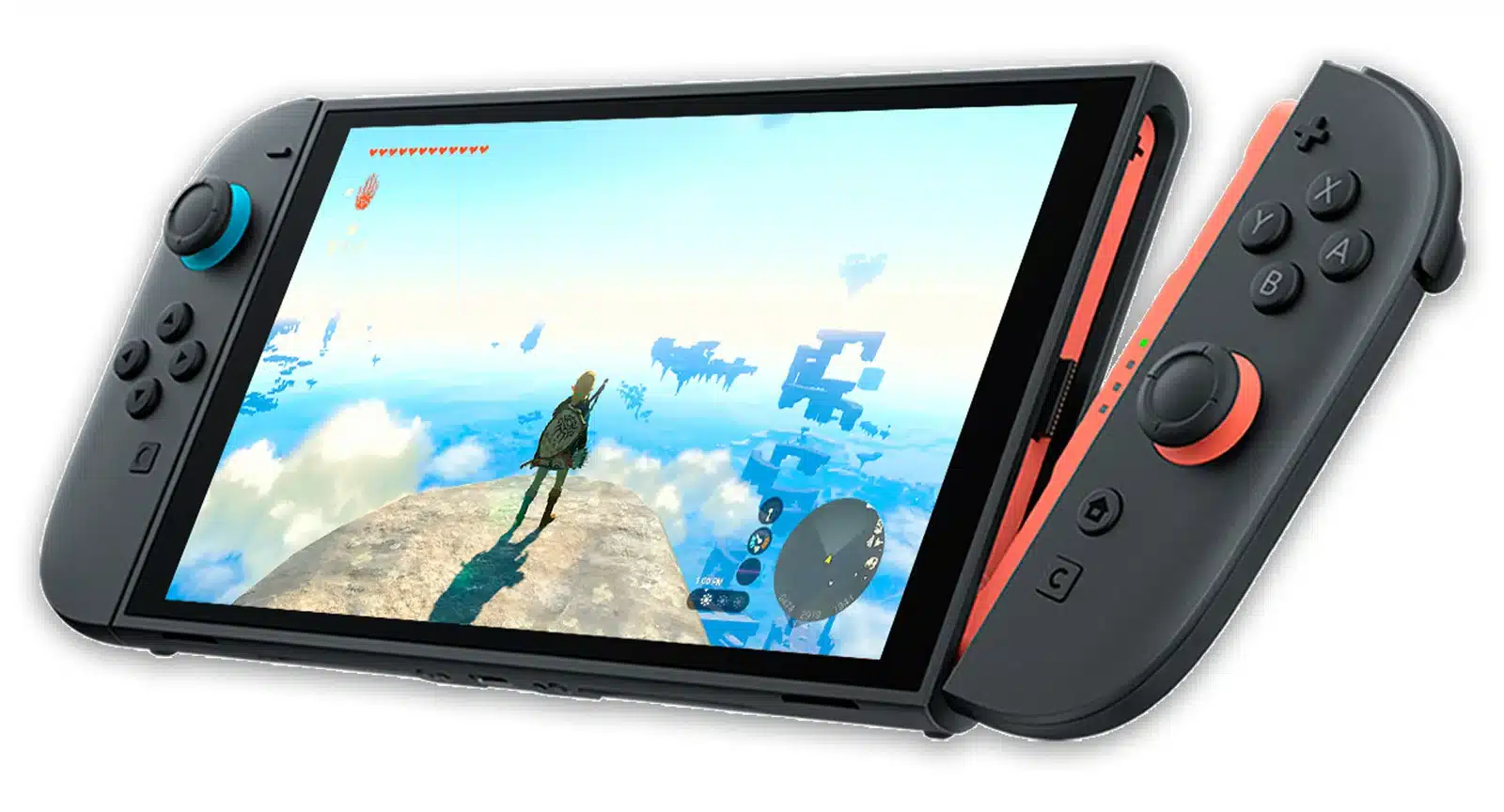
Option 2: Move Only Your Save Data
Already finished setting up the Switch 2 and skipped the transfer? Look, I get it. You don’t need to reset anything to move your TOTK save.
- On the original Switch: System Settings, then Data Management, then Transfer Your Save Data. Pick Send Save Data to Another Console and choose Tears of the Kingdom.
- On the Switch 2: choose Receive Save Data in the same menu.
- Same account: the user on both consoles must be linked to the same Nintendo Account.
Like the full transfer, this moves the save instead of copying it. If you have Nintendo Switch Online, Save Data Cloud is the other route: it lets you download a copy of your backed-up save on the new console.
Here’s where it gets interesting: if you plan to trade in your old Switch before the new one arrives, Nintendo also offers a server based System Transfer. It resets the old console and has a storage deadline, so only use it when you can’t have both consoles in the same room.
Getting the Switch 2 Edition
Your Switch 1 copy runs on Switch 2 as is, so you can keep playing right away. The Switch 2 Edition is the upgrade that unlocks the new features.
| If you… | Do this |
|---|---|
| Own the Switch version | Buy the Nintendo Switch 2 Edition Upgrade Pack ($9.99) |
| Have Nintendo Switch Online + Expansion Pack and own the game | Get the Switch 2 Edition at no extra cost while your membership lasts |
| Don’t own the game | Buy the full Nintendo Switch 2 Edition |
Your existing save works in the Switch 2 Edition. The one catch: the Switch 2 Edition adds a second save slot, and a file created in that slot can’t be moved back to the original Switch version.
What the Switch 2 Edition Adds
- Performance: higher resolution, a much smoother frame rate and HDR on compatible TVs.
- Faster loading: fast travel between shrines and towers is far quicker.
- Second save slot: start a fresh run without touching your main file.
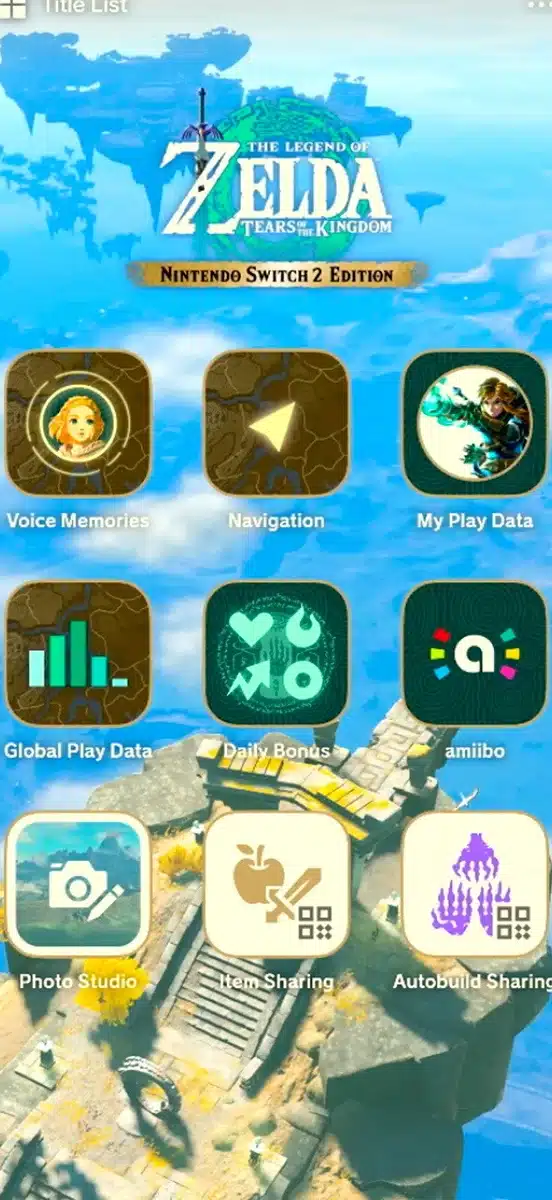
- Zelda Notes: a companion service in the Nintendo Switch App on your phone with voiced navigation, Voice Memories, play data, a Daily Bonus and Autobuild Sharing.
For the full verdict on whether the upgrade is worth paying for, read our Tears of the Kingdom Switch 2 Edition review. For every patch since the Switch 2 Editions launched, see the Zelda Switch 2 updates page.
Your First Night Back in Hyrule
- Check the version: highlight the game on the HOME Menu, press + or minus, and make sure it reads 1.4.3. If not, choose Software Update.
- Calibrate HDR: do it in System Settings with your TV before you judge how the game looks.
- Set up Zelda Notes: link the Nintendo Switch App on your phone and claim your first Daily Bonus.
- Try Autobuild Sharing: scan someone else’s build and save yourself an afternoon. Our Autobuild guide covers how the ability works.
- Use the second slot: if you’ve been itching for a fresh run, this is your moment.
Lore Deep Dive: I’m not gonna lie, there’s something poetic about carrying a save file across consoles in a game about ancient Zonai tech outliving its makers. Your Hyrule, your weird vehicles and your stash of Zonite all make the jump intact.
TOTK Switch 2 Setup FAQ
Can I transfer my Tears of the Kingdom save to Switch 2?
Yes. Use System Transfer during the Switch 2 setup, or Transfer Your Save Data from Data Management afterwards. Both need the same Nintendo Account on each console.
Do I need to buy the Switch 2 Edition?
No. The original version runs on Switch 2. The Switch 2 Edition Upgrade Pack ($9.99) adds better performance, HDR, a second save slot and Zelda Notes.
Is the Switch 2 Edition free with Nintendo Switch Online?
Only with Nintendo Switch Online + Expansion Pack, and only if you own the base game. You lose access if the membership lapses.
Does the transfer delete my data from the old Switch?
Yes. Both System Transfer and Transfer Your Save Data move the data rather than copy it.
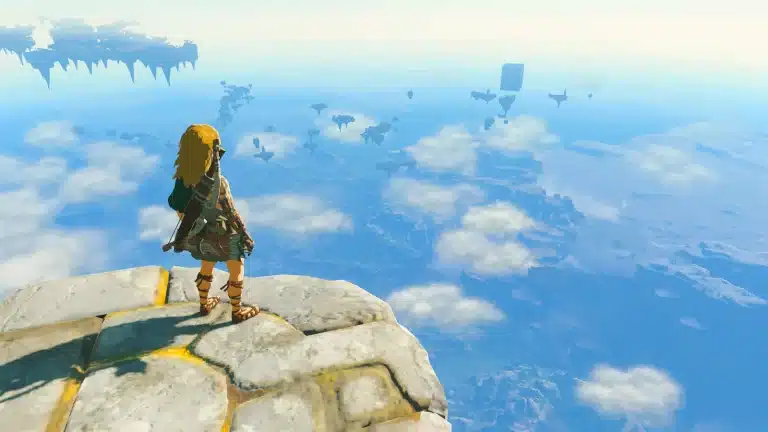
The Payoff: a few menus, one restart and you’re standing on a sky island at a much smoother frame rate with your whole adventure intact. The worldbuilding here is next level, and now it finally runs like it.