NVIDIA‘s latest NVIDIA App update gives AI agents a direct line into your GPU software, and many users are only finding out after the fact. Version 11.0.9.565 adds the new NVIDIA App AI agent feature, built on the Model Context Protocol (MCP), and for many users it is switched on as soon as the update installs.
What the new AI agent feature does
NVIDIA describes the addition in its official NVIDIA App release highlights as AI Agent Support for a Model Context Protocol server. It lets a compatible AI assistant control the app through plain-language requests. NVIDIA names Hermes, OpenClaw and Perplexity as compatible assistants.
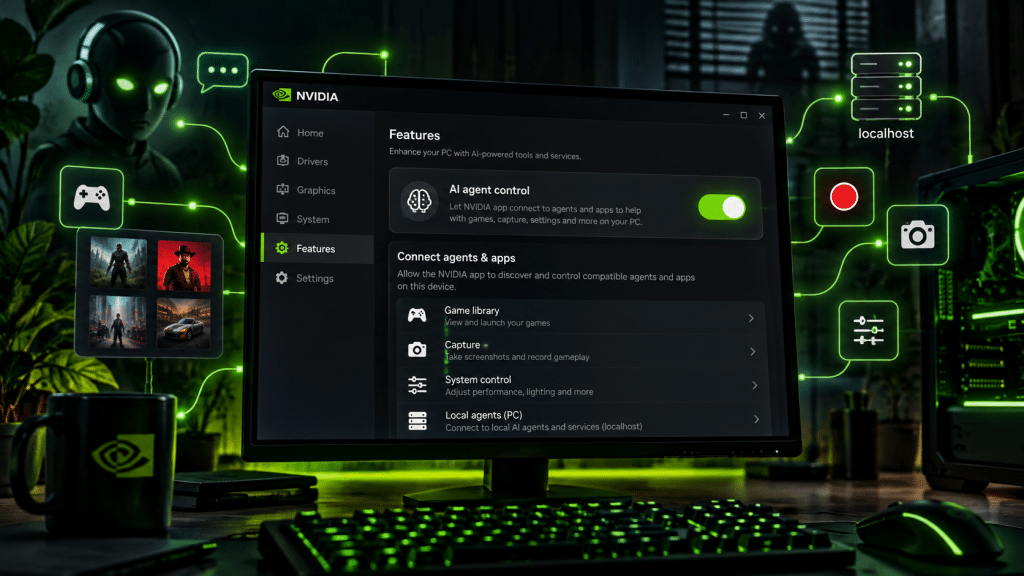
MCP is an open standard that lets AI tools connect to outside apps and data. Here, it means an agent can read the NVIDIA App’s state and change its settings. The exposed functions include:
- Checking which game is currently running
- Starting and stopping recordings
- Taking screenshots
- Controlling Instant Replay and Highlights
- Toggling RTX Dynamic Vibrance
- Showing the performance stats overlay
- Finding and launching installed games
- Checking NVIDIA driver status
- Changing game optimization settings
- Adjusting Battery Boost and Whisper Mode on supported laptops
Driver information and the list of detected games are read-only. Everything else on the list can be changed by an agent.
In practice, that means the NVIDIA App AI agent can do most of what you would normally click through yourself in the overlay. An assistant could, for example, start a ShadowPlay clip when you ask, switch a game to NVIDIA’s recommended graphics preset or tell you whether a newer driver is available.
Why players are pushing back
The capabilities aren’t what upset people. The default setting is. Users who updated report finding the agent toggle already on, even though they never opted in. NVIDIA’s release notes don’t explain why the feature ships enabled.
The MCP server runs locally on the PC, on the loopback address 127.0.0.1 (port 13508 by default). It doesn’t connect to any outside AI service by itself, so nothing is sent off your machine unless you connect an agent. That caveat matters, though. If you connect an assistant that runs in the cloud, the information it pulls from the NVIDIA App, such as the game you’re playing, your driver version or your installed library, can be passed to that service.
For most players, who have no plans to let an AI assistant manage their recordings or graphics presets, a background server they never asked for adds attack surface and gives them nothing in return.
If you do want to try the NVIDIA App AI agent, you can leave the toggle on and connect one of the supported assistants yourself. Anyone who has no use for it is better off switching it off until they need it, as the server can be turned back on in the same menu at any time.
How to disable the NVIDIA App AI agent
Turning the feature off takes a few seconds:
- Open the NVIDIA App and go to Settings.
- Select Features and scroll to Connect Agents & Apps.
- Switch off Allow AI agents to control NVIDIA App. The toggle turns from green to grey.
Turning off that master toggle also stops the persistent MCP server, so nothing stays listening in the background.
The bigger picture
This is the latest sign of PC software makers racing to make their apps “agent-ready.” Launchers, overlays and system utilities are adding hooks so AI assistants can act for the user. Some players will welcome being able to say “record the next ten minutes” or “optimize this game.” Shipping the feature turned on by default, though, means a lot of people now have it running without knowing it exists.
PC clients have been changing a lot lately. You can read more in our coverage of Steam’s recent client update and its faster startup times.
If you rely on the NVIDIA App for driver updates or ShadowPlay, check that setting after you update.